LivelyWallpaper CPU and GPU usage is usually modest, yet certain wallpapers and settings can push it higher than expected. Animated backgrounds always need some processing, because every frame must be decoded or rendered. The good news is that Lively includes several tools to keep that work under control, and a few simple choices make a large difference.
This article explains why usage rises, how to measure it accurately and which settings and wallpaper choices bring it back down, whether you use a gaming desktop, an office PC or a thin laptop with integrated graphics.
What Drives Resource Use
The wallpaper itself is the biggest factor. A short 1080p video at 30 fps requires far less work than a 4K clip at 60 fps. Web wallpapers vary even more, ranging from simple clocks to demanding WebGL simulations that keep the GPU busy constantly.
Hardware matters as well. Dedicated graphics cards decode video efficiently, while older integrated graphics may lack hardware support for some codecs, forcing the CPU to take over decoding duties.
| Factor | Effect on usage |
|---|---|
| Resolution | More pixels mean more decoding and rendering |
| Frame rate | 60 fps doubles the frames of 30 fps |
| Codec | Hardware-decoded codecs keep CPU usage low |
| Web scene complexity | Shaders and simulations raise GPU load |
| Number of screens | Each animated display adds work |
Measuring Usage Correctly
Task Manager shows CPU and GPU use per process. Lively uses separate processes for its interface and for wallpaper players, so look for all related entries rather than just one. The GPU column, and the engine shown beside it, reveal whether video decoding or 3D rendering is responsible.
Measure with the desktop visible and again with a fullscreen application open. If usage stays high while a game or video is fullscreen, a pause rule may be disabled or the wrong pause algorithm may be selected.
Pause Rules That Do the Heavy Lifting
Lively pauses wallpaper playback when fullscreen games or applications run, bringing wallpaper CPU and GPU usage close to zero. That behaviour is on by default and is the most effective setting for gamers.
Additional rules cover applications that are focused but not fullscreen, battery power on laptops and remote desktop sessions, where wallpapers pause automatically. You can also define behaviour for specific programs, choosing to pause, ignore or close the wallpaper when they run.
- Applications fullscreen: pause to free resources for games
- Applications focused: pause if you work in maximised windows
- Battery power: pause to extend unplugged time
- Per-app rules: tailor behaviour for editors, browsers or launchers
Choosing a Pause Algorithm
The pause algorithm decides how Lively detects that an app needs priority. Options include checking the foreground process, all processes or Direct3D exclusive mode. If games do not trigger a pause, switching algorithm often fixes it.
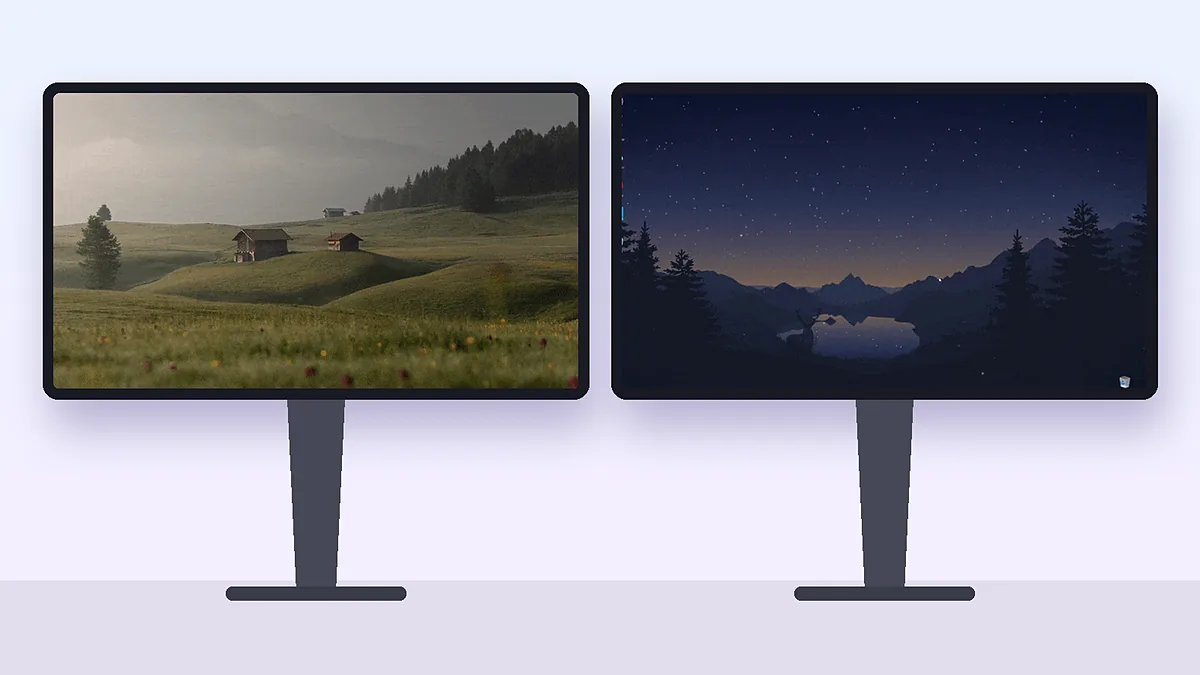
The display pause rule matters on multi-monitor setups. Pausing per screen keeps a second display animated while you play on the first, whereas pausing all screens saves the most resources.
Picking Lighter Wallpapers
Matching wallpaper resolution to your display avoids wasted work. A 4K file on a 1080p screen costs more to decode yet looks no sharper, as covered in the LivelyWallpaper 4K article. Re-exporting clips at 30 fps and in H.264 often halves the load.
Web wallpapers deserve extra attention. Particle systems, fluid simulations and shaders can be demanding even when they look simple. Many expose settings through Customise, such as particle counts or quality levels, which can be reduced for everyday use.
- Use video files that match your screen resolution
- Prefer 30 fps for calm scenes and secondary displays
- Lower quality options in web wallpapers where available
- Avoid running two heavy wallpapers on two screens at once
Audio-Reactive Wallpapers
Wallpapers that react to music analyse system audio continuously, which adds a small amount of extra work. Choosing the right audio device in Lively's settings and limiting audio-reactive scenes to one screen keeps that overhead modest while still enjoying visualisers during music sessions.
Switching the Video Player
Lively supports more than one video player. If a video wallpaper uses unusual amounts of CPU, the active player may not be using hardware decoding for that file. Switching players in settings and comparing usage in Task Manager quickly reveals the better option.
Keeping graphics drivers updated helps too. New drivers often improve hardware decoding for codecs such as HEVC, VP9 and AV1, which directly reduces the work placed on the CPU.
| Problem | Quick fix |
|---|---|
| High CPU with video wallpaper | Switch video player, use H.264 |
| High GPU with web wallpaper | Lower quality settings or choose a simpler scene |
| Usage stays high during games | Check fullscreen rule and pause algorithm |
| Laptop battery drains fast | Enable pause on battery power |
Most high-usage reports come down to an oversized file or a disabled pause rule, both of which take seconds to change.
Extra Tips for Laptops
Laptops balance performance against heat, fan noise and battery life, so animated wallpapers deserve a lighter touch. Enabling the battery power rule pauses playback whenever the charger is unplugged, which protects unplugged time without changing anything while you are at your desk.
Windows power modes also influence wallpaper behaviour. Best power efficiency modes may lower GPU clocks, making heavy wallpapers stutter. Choosing calmer 1080p loops keeps playback smooth in any mode, and the dual monitor article explains settings for laptops connected to external displays.
- Pause wallpapers on battery power
- Prefer 1080p, 30 fps loops on thin laptops
- Keep vents clear so the GPU does not throttle
- Pause all screens when docking to several monitors
Conclusion
LivelyWallpaper CPU and GPU usage depends mainly on the wallpaper you choose and the rules you enable. Resolution, frame rate, codec and scene complexity set the baseline, while pause rules decide what happens when other applications need your hardware.
Match files to your display, keep fullscreen and battery pausing on, and try the alternative video player when decoding seems heavy. These steps keep animated backgrounds light enough to enjoy alongside games, work and everything else, whether your PC is a powerful gaming desktop or a modest everyday laptop.